Sign people out after a quiet spell
A shared computer in the office or a classroom should not stay signed in for the next person. Choose how many quiet minutes each kind of login gets.
Where: Settings > Security and devices > Sign out after a quiet spell
On the web, Settings
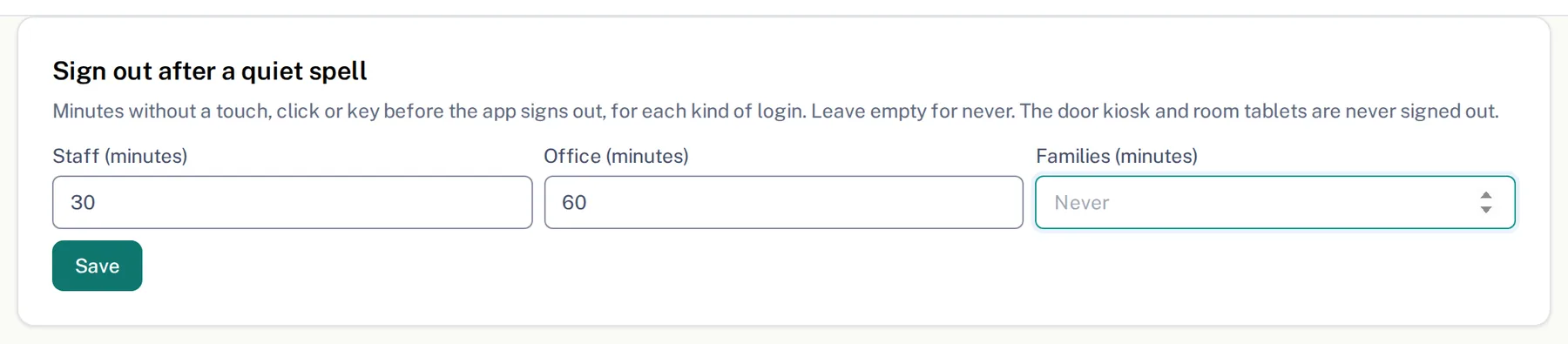
This is the director's setting. It applies to Farlow in a web browser; the kiosk and room tablets are left alone.
- 1.
Open Settings, then Security and devices, and find the Sign out after a quiet spell card.
- 2.
Type a number of minutes in Staff (minutes), Office (minutes) and Families (minutes). Office means the director, managers and the bookkeeper.
- 3.
Leave a box empty for Never. A number is 1 to 720 minutes.
- 4.
Tap Save. The card says Saved.
Any touch, click, key press or scroll restarts the clock. When the minutes run out, Farlow signs that person out and they sign in again as usual. Each person's own computer can still use Keep me signed in (not on a shared computer) at sign-in, but the quiet-spell limit applies on top of it.
Questions
- Why does Farlow say I have been signed out?
- Your sign-in ended after a while without use, or your center's quiet-spell setting signed you out. Tap Sign in again. Anything you queued while offline is kept.
- Does it count the time my laptop was closed?
- Yes. Time with the page hidden counts as quiet, so coming back after the limit signs you out.
- Will the front door kiosk sign out?
- No. The door kiosk and room tablets are never signed out.