Give staff a code for the room tablet
A tablet that stays in a room is signed in once. Each teacher then types their own four-digit code before an action, so the record shows who did it and nobody shares a password.
Where: Settings > Staff and time > Staff codes for the room device
On the web, Settings
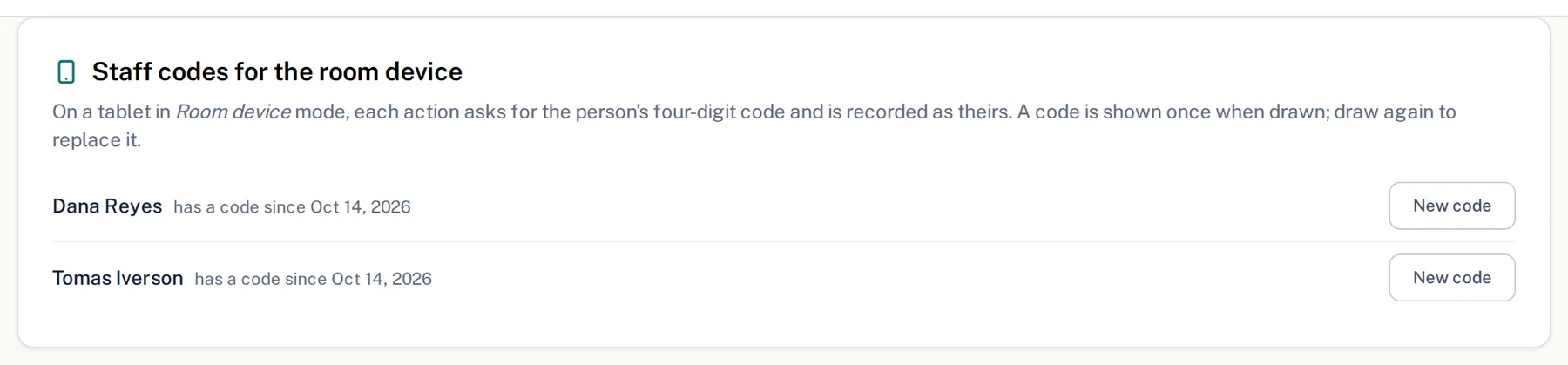
Codes are drawn by the director in Settings. The tablet needs someone to sign in on it once.
- 1.
Open Settings, then Staff and time, and find the Staff codes for the room device card. Each person on the team is listed with no code yet or the date their code was set.
- 2.
Tap Give a code next to a teacher. The four digits show once, next to their name. Read them out or hand them over in person.
- 3.
On the tablet, sign in, choose Room device in the menu and tap the room the tablet lives in.
- 4.
When a teacher checks a child in, logs a meal or writes to a family, the tablet asks Who are you? They type their code and tap Confirm.
- 5.
To take the tablet out of the room, tap Leave. It stays signed in.
Every action is recorded under the teacher whose code was typed, and the top of the tablet shows who did the last one. If a code gets around, tap New code for that person.
Questions
- A teacher forgot her code. Can I look it up?
- No. A code is shown once. Tap New code to draw another; the old one stops working at once.
- Can teachers pick their own?
- Yes. On their Home, the My room-device code card has Choose my own. They type four digits and tap Use this code.
- What if someone keeps guessing?
- After several wrong codes the tablet says Codes are locked for a minute. and then lets them try again.