Add your own line to payment reminders
Farlow reminds families when an invoice is overdue. Add a line of your own, like who to call or a payment plan you offer, and every reminder ends with it.
Where: Billing > Plans and setup > Your line on overdue reminders
On the web, Billing
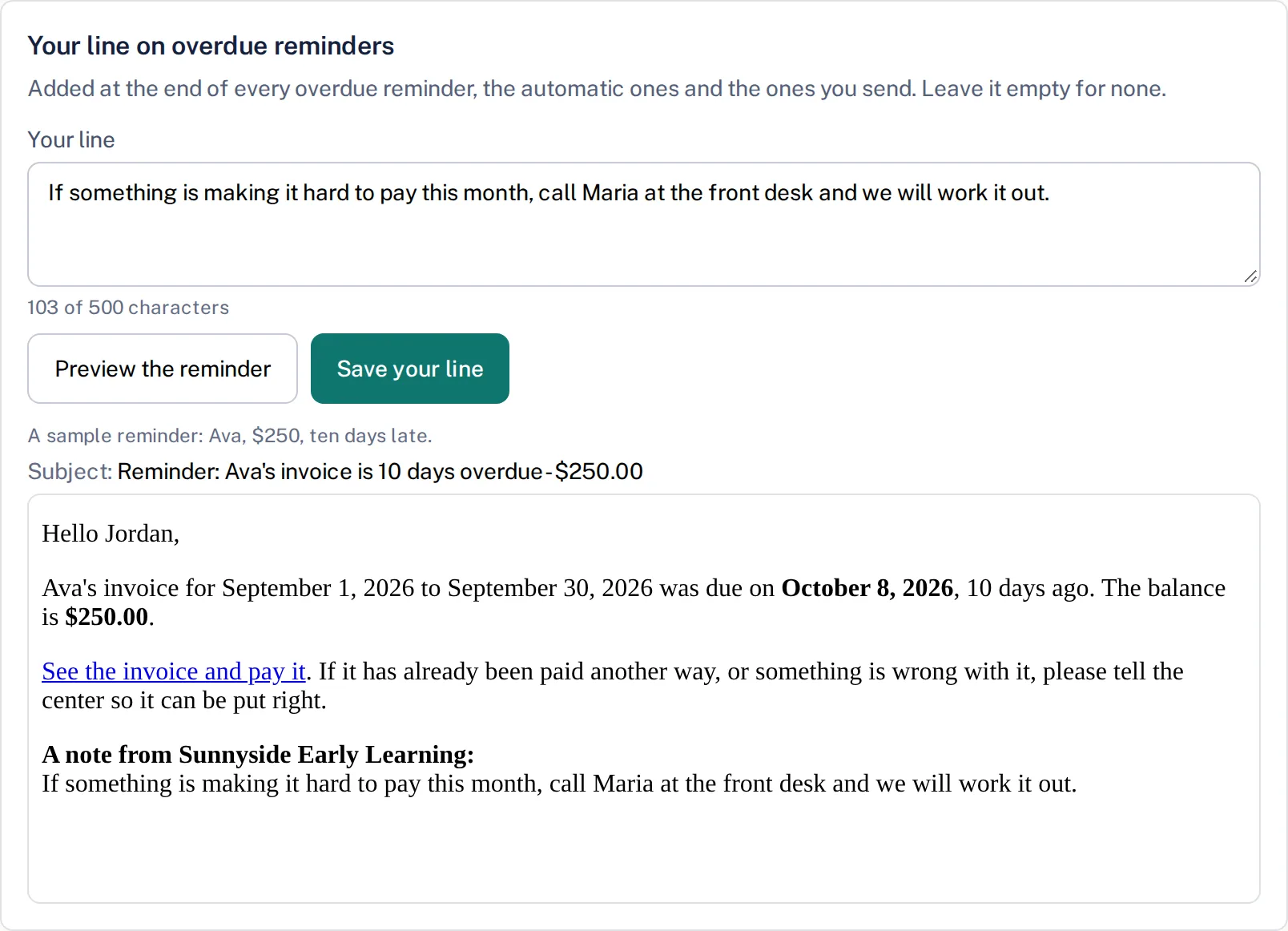
This is in Billing, for the director and anyone with billing access.
- 1.
Open Billing, then Plans and setup, and find Your line on overdue reminders.
- 2.
Type your line in Your line. It can be up to 500 characters.
- 3.
Tap Preview the reminder to see the email a family would get, with your line at the end, under a heading that names your center.
- 4.
When it reads right, tap Save your line.
Every overdue reminder from then on carries your line: the automatic ones, the ones sent with Send overdue reminders now, and the ones sent from Remind on a single invoice. Empty the box and save to send reminders without a line.
Questions
- When do the automatic reminders go out?
- The day after an invoice's due date, then once a week, at most four times for each payer. Email has to be on for your center.
- Does the preview send anything?
- No. It shows a sample reminder for a made-up child and amount, and nothing is saved until you tap Save your line.
- Can families who read Spanish get it too?
- Yes. The reminder is in the family's language, and your line appears as you wrote it.