Pay a bill and turn on automatic payments
Your invoices are under Billing. Card details go to the payment page, never into the app.
Where: Billing > the pay button, or Automatic payments
On the phone, Billing
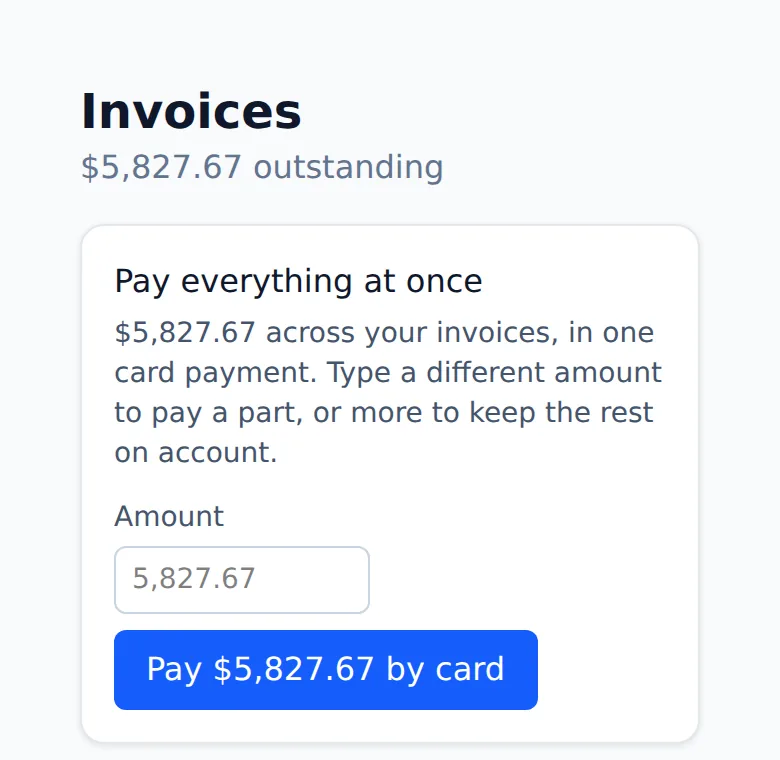
Paying online is something your center switches on. If it has not, the Billing page shows how your center takes payment instead, such as a check.
- 1.
Open Billing. The top line shows what you owe, or Nothing outstanding.
- 2.
On an invoice, tap the pay button. It names the amount and how you pay: by card, by bank transfer, or either. You finish on a secure payment page and come back to the app.
- 3.
If you have more than one open invoice, the Pay everything at once card pays them in one card payment.
- 4.
To have each invoice paid on its due date, find Automatic payments and tap Set up automatic payments. Save a card or bank account on the payment page.
- 5.
To stop it, tap Switch autopay off. If your center requires automatic payments, the button is not there and the office switches it off for you.
If your center adds a fee for paying online, the amount and the fee are shown under the pay button before you tap it. You can save more than one card or account and choose which one autopay uses with Use for autopay.
Questions
- Is there a fee for paying online?
- Only if your center adds one. The fee and the total show under the pay button before you tap it.
- Can I stop automatic payments?
- Yes, with Switch autopay off, unless your center requires them. Then the office switches it off for you.
- Does the app keep my card number?
- No. You type it on the payment page, not in the app.