Start a group chat with your colleagues
A group is a conversation with the colleagues you choose, next to the room channels and your one-to-one chats.
Where: Messages > Team > New group
On the web, Messages
Groups are for staff. Everyone you add has to work at your center.
- 1.
Open Messages and choose Team.
- 2.
Under Groups, tap New group.
- 3.
Type a Group name. In Find a colleague, type part of a name and tick each person you want.
- 4.
Tap the button under the list. It says how many people you picked, and the group opens.
- 5.
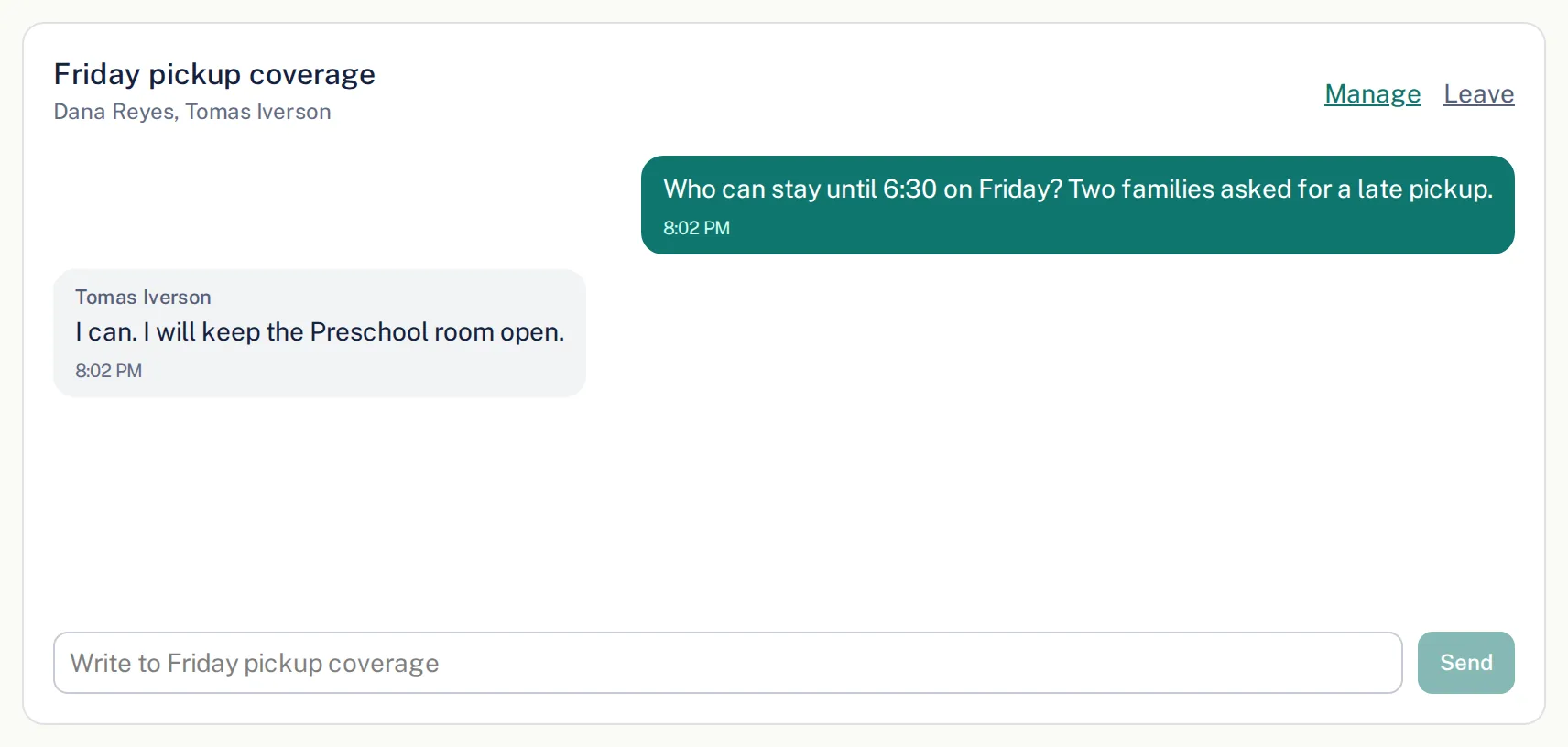
Write in the box at the bottom and tap Send. Everyone in the group sees it, with a count on the group in their list until they open it.
The person who made the group sees Manage. There they can Rename it, Remove someone, or tick more colleagues to add them. Anyone can Leave. A person who is removed or leaves loses the group and its messages at once.
Questions
- Can I add a parent to a group?
- No. Groups are for staff. Families never see them.
- Who can change the group?
- Only the person who made it. Everyone else in it can read, write and leave.
- What happens when someone stops working at the center?
- They drop out of the center's groups and no longer see them.