Message a room or several families at once
Write it once. Every family you tick gets it in its own private conversation, and replies come back to you one by one.
Where: Messages > Families > Message several families
On the web, Messages
- 1.
Open Messages and pick the Families tab.
- 2.
Tap Message several families.
- 3.
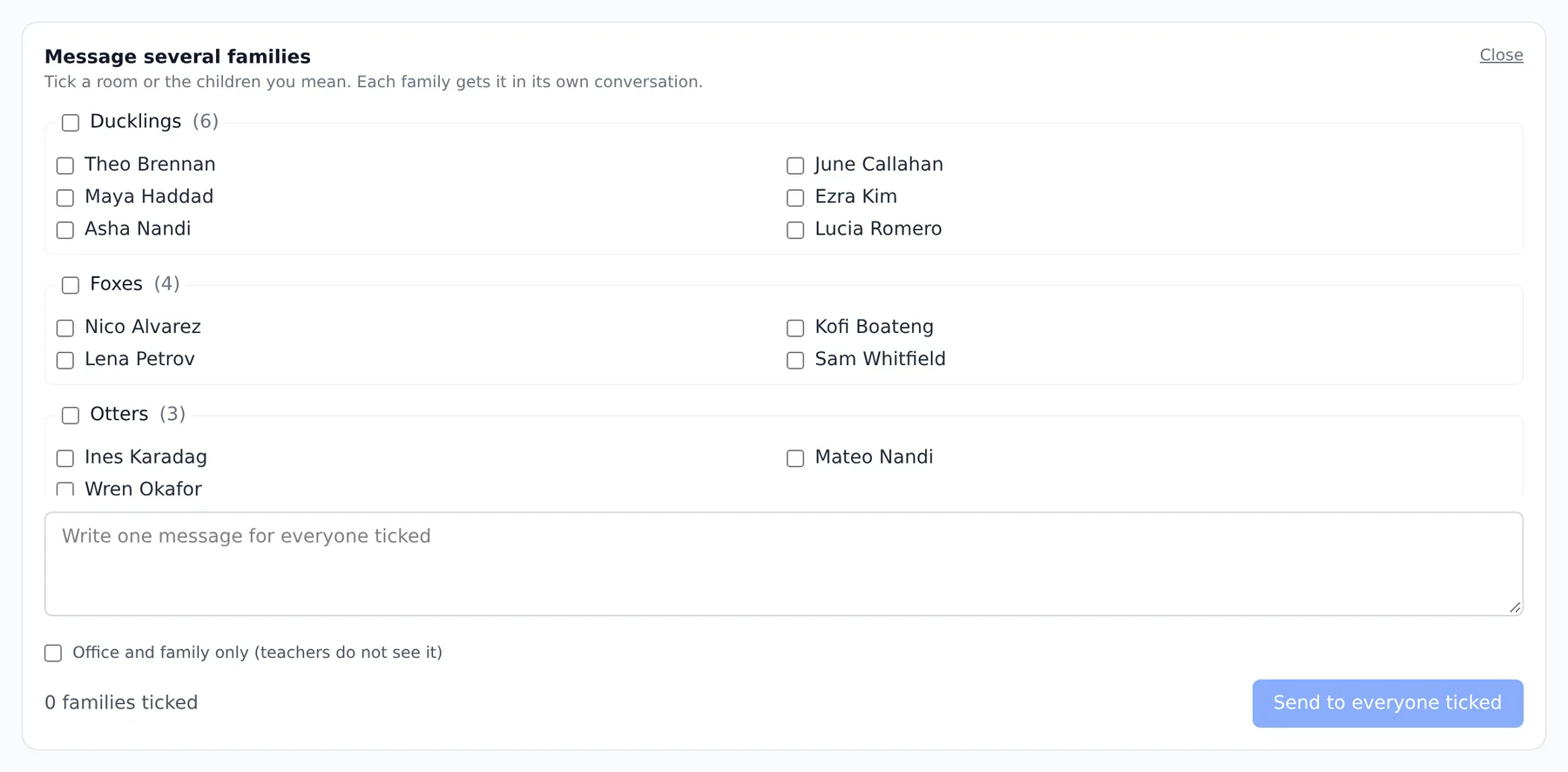
To reach a whole room, tick the room's box at the top of its list. To reach only the children here today, tap Everyone here now (the button shows how many children). Or tick children one at a time.
- 4.
Write the message once, in the box that says Write one message for everyone ticked.
- 5.
Tap Send to everyone ticked. The page says how many families it went to.
A director also sees Office and family only (teachers do not see it), for a message the room's teachers should not read.
Questions
- If I tick a room, do the families see each other?
- No. Each family gets its own copy in its own conversation and replies privately.
- Is there one button for every family in the center?
- Not yet. Tick each room, or use Everyone here now for the children checked in today.
- Can a teacher do this?
- Yes. Keeping a message from the teachers is for a director.