Put your inquiry form and tours on your website
One link takes inquiries from your website, a flyer or an email signature. New families can book a tour in the same step.
Where: Settings > Inquiry link > Make the link
On the web, Settings
- 1.
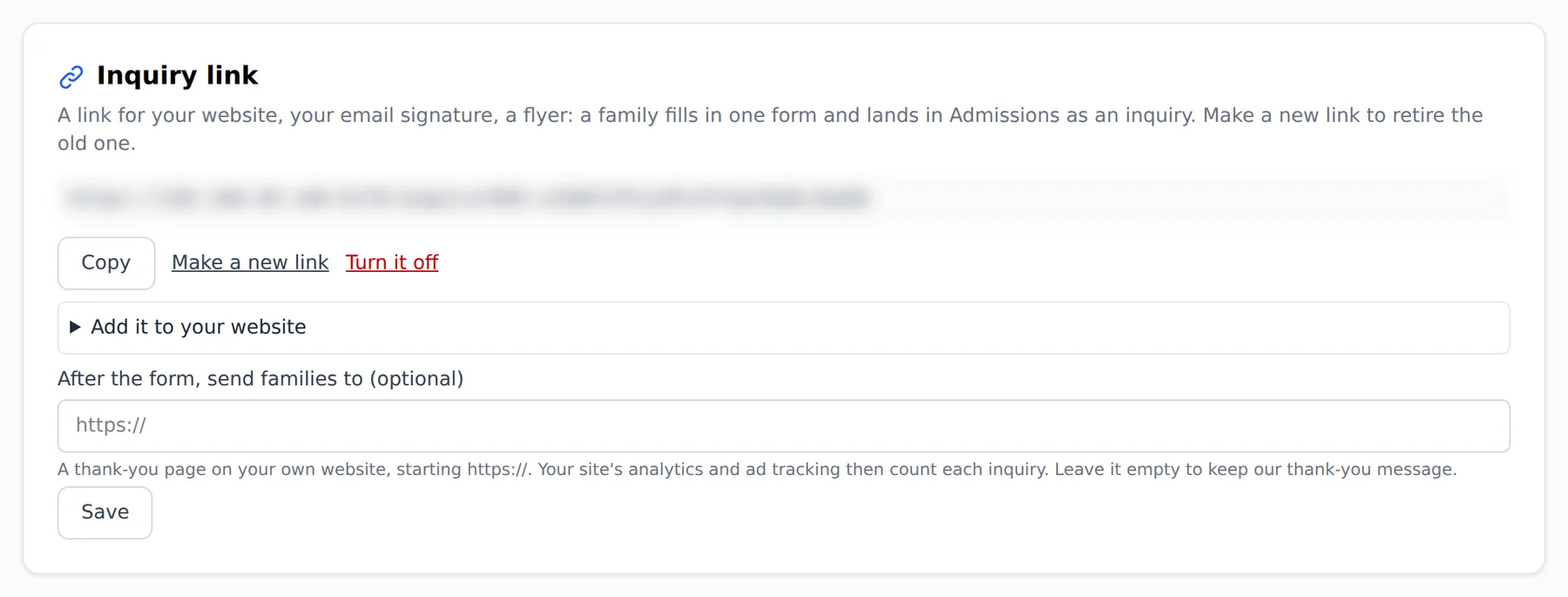
Open Settings and find the Inquiry link card. Tap Make the link.
- 2.
Tap Copy and put the link on your website, or use Add it to your website for a ready-made button or the whole form on your page.
- 3.
For tours, open Sign-ups and tap New sheet. Tick Tours for new families, save it, add the tour times, and tap Open.
- 4.
The sheet now shows Tours on your inquiry form. A family filling in the form sees Book a tour (optional) with your open times.
Every inquiry lands in Admissions with the family's details and any tour they booked. If the link is ever passed around where it should not be, Make a new link replaces it, and Turn it off stops it.
Questions
- What if the link ends up somewhere it should not be?
- Use Make a new link to replace it. The old one stops working. Turn it off stops it altogether.
- Where do inquiries go?
- Into Admissions, with the family's details and any tour they booked.
- Who can make the link?
- A director or a manager.